
Screenshots
Get a screenshot of your item straight from CS2. Playside and backside on one image, ready to post or send.
Ready
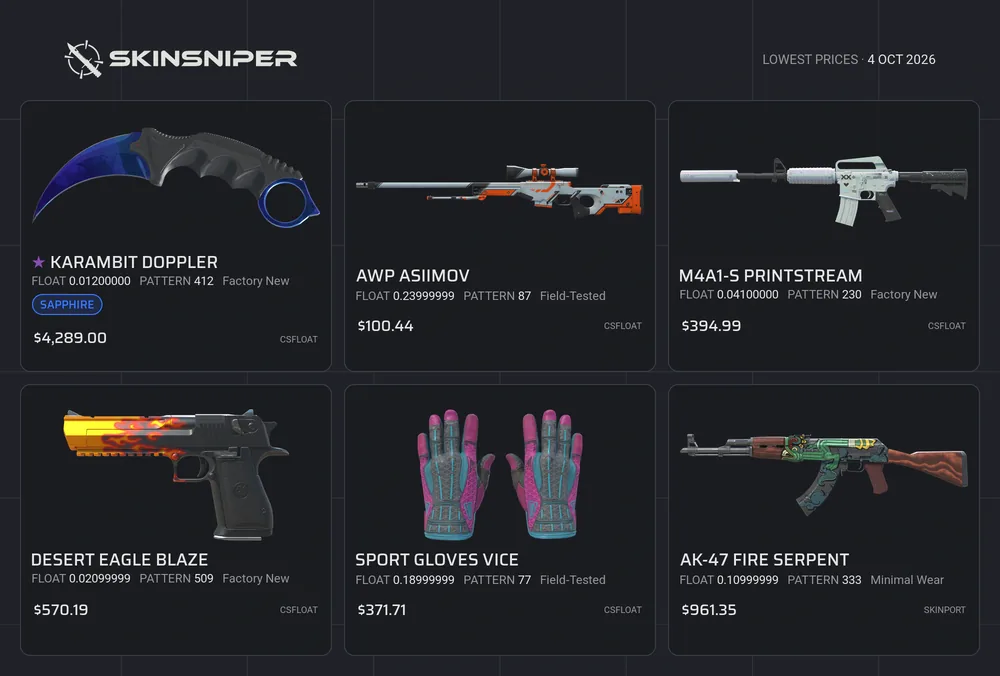
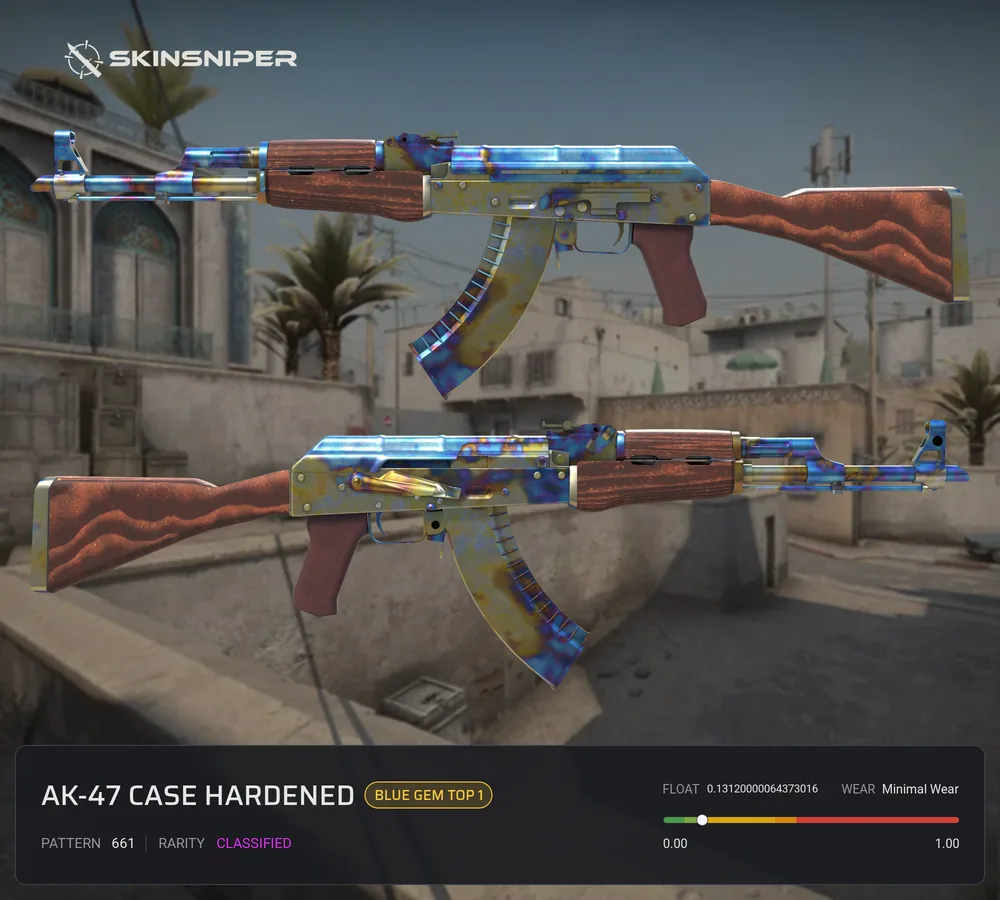
One skin or a whole trade post
Paste one inspect link for a screenshot of that item, or up to 9 links for a trade post with all of them.
Latest community screenshots


Screenshots and trade posts FAQ
- How do I get a screenshot of a CS2 skin?
- Copy the item's inspect link: in Steam, right-click Inspect in Game and copy the link address, or copy it from the item in your CS2 inventory. Paste it here and submit. We open the item in CS2 and take shots of both sides, with its own float, pattern, stickers and charm.
- What is a trade post?
- One image with up to 9 items for a trade or a sale. Paste several inspect links, one per line; words after a link go under that item, like a price or b/o. Logged in, you can add your name, the payment methods you take, where to message you and a QR code to your Steam profile or trade link.
- Which items can I screenshot?
- Guns, knives and gloves, and also stickers, patches, charms, sticker slabs, agents, music kits, graffiti, pets and the C4.
- Can I change the map or the shape afterwards?
- Yes. We keep the shots from the game, so changing the map, shape, price or text takes a few seconds and you do not wait for the game again.
- Do my screenshots show up for other people?
- Cards marked public can show up in the latest community screenshots on this page. Cards with your name on them and trade posts never do, and you can untick public before you submit.
- Why do I sometimes have to wait?
- We take every screenshot in the game, one item after another. When many players submit at once you wait your turn, and the page shows your place in line.